This new Mac app helps you delete Apple Intelligence and saved me 12GB
- A new app called RemoveMacAI can delete Apple Intelligence files
- Doing so can reclaim up to 12GB of storage space
- But it comes with some scary warnings that shouldn’t be ignored
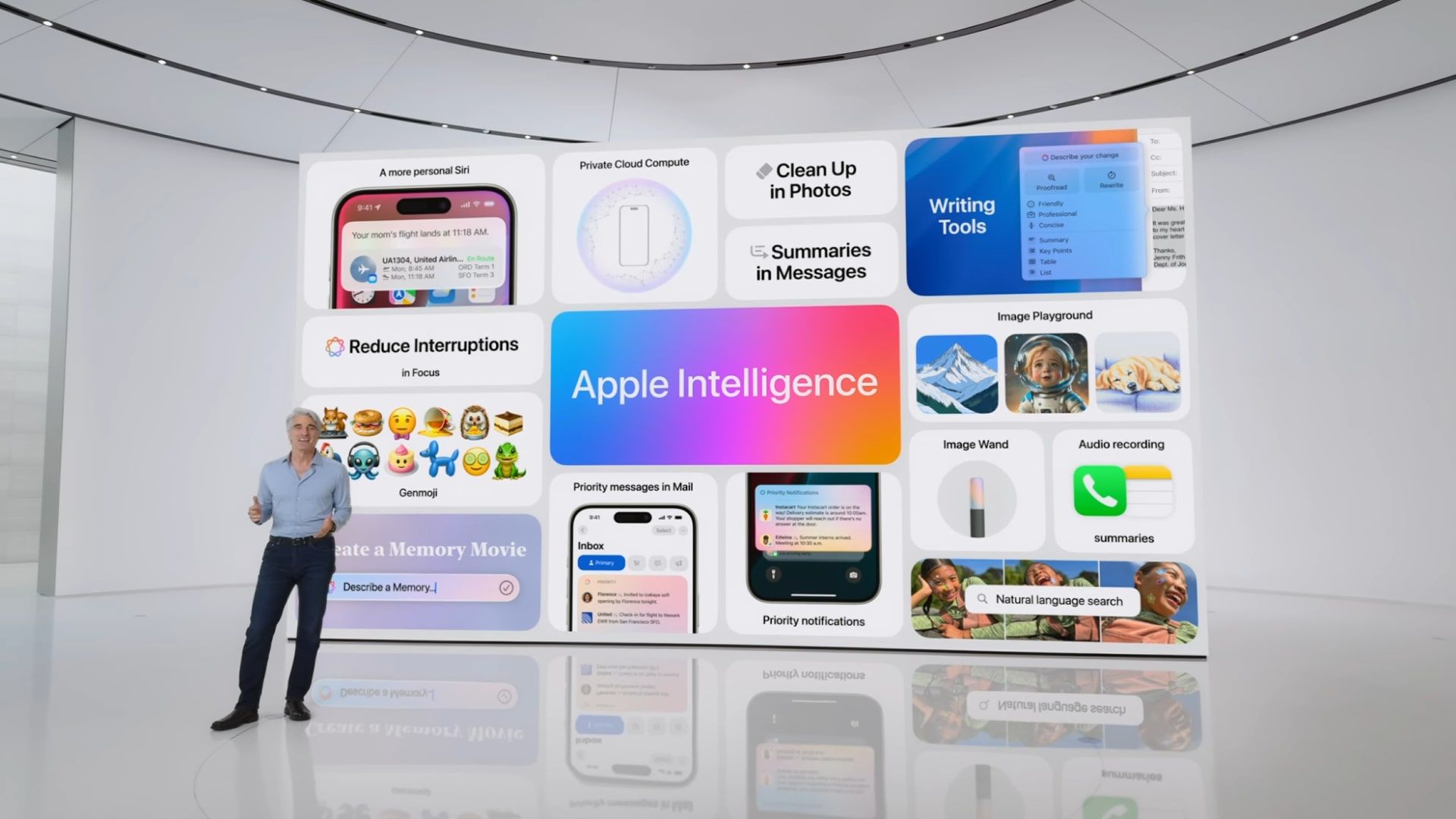
Apple promises that its new Siri AI and Apple Intelligence tools can help improve your daily experience through the magic of AI. Many people aren’t convinced, though, and a new Mac app has been doing the rounds that promises to delete Apple’s AI for good — so I decided to take it for a spin to see what all the fuss was about.
Dubbed RemoveMacAI, the app originally gained popularity in late September. At that time, though, it was just a simple Terminal command, which — given the obvious security risks of entering unknown code into a utility as powerful as the Terminal — turned some people off.
Now, the same developer is back with a Mac app that is essentially a wrapper for the command. This makes it a lot easier to understand what you’re deleting and what you’re enabling when you use the app, with a built-in tutorial and clear toggles spread across several different tabs and categories.
Apple makes it pretty difficult to eliminate every aspect of Apple Intelligence from your machine, which is why something like RemoveMacAI has gained a foothold. Its developer says Apple’s System Integrity Protection layer — which stops unauthorized code from running on your Mac — is never disabled, and that the app doesn’t make any network requests and doesn’t collect telemetric data.
That said, I loaded RemoveMacAI onto my Mac and was immediately met with a concerning warning: macOS did not trust the app and wouldn’t let me run it. The developer said this is due to the app being unsigned, and you’ve got to manually let it through Apple’s gates. I’ve occasionally encountered apps that do this, and it’s never a pleasant experience.
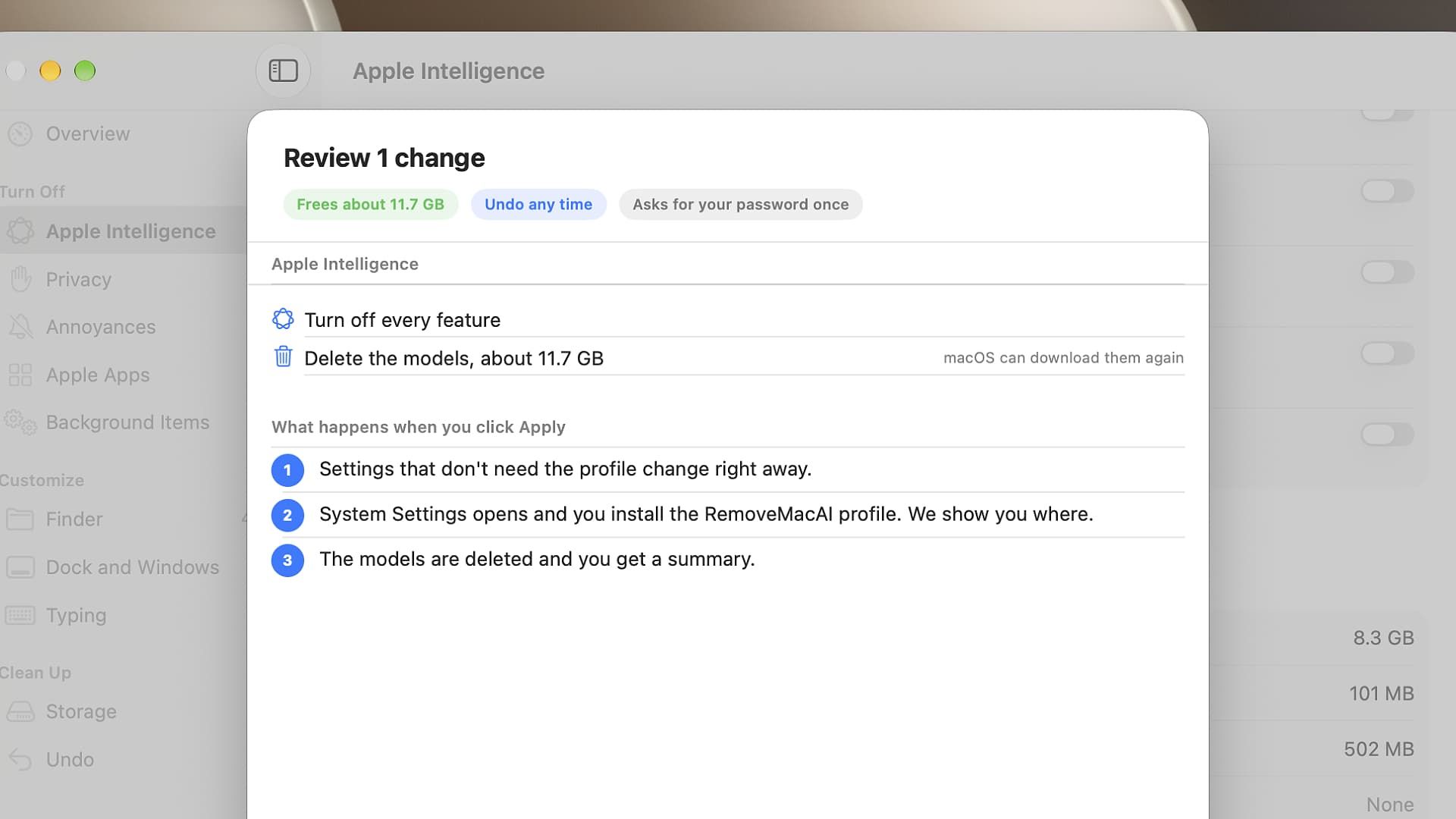
Foolishly or not, I pushed on. You can either choose the app’s recommended settings, which delete Apple Intelligence and turn off some privacy-invading settings, go “maximum privacy” and also disable Game Center and some Safari settings, or choose what to do yourself.
I opted to just delete Apple Intelligence and nothing else. RemoveMacAI breaks your options down into sections — you can switch off Siri AI, ChatGPT’s extension, Writing Tools, Image Playground, and much more, all with modular toggles.
Once that’s done, there’s another jarring moment: RemoveMacAI wants you to install a custom profile that it uses to enact your changes. Fortunately, you can read through every change it includes, so there’s visibility over what’s being done.
I accepted that and let RemoveMacAI get to work deleting Apple Intelligence. In the end, it freed up 11.7GB, which is nothing to sniff at and is in line with the developer’s claims. If you’re running low, it could be a good way to claw back precious disk space.
Although RemoveMacAI comes with some scary settings, it attempts to ease your fears by letting you read through everything that’s going to be changed, including the macOS profile. You can undo your decisions too, and doing so will revert your settings changes and redownload the Apple Intelligence models when they’re needed next.
Ultimately, I found RemoveMacAI to be a handy utility, especially if you want one resource for not only deleting Apple Intelligence, but also for restricting some of macOS’s more privacy-invading practices. The lack of notarization and the subsequent alarming warnings will likely put some people off, though, and they stop me from wholeheartedly recommending the app as a result.